
Servers and sources
PandaReader connects to five server protocols plus local folders and Calibre's wireless connection. This page covers what each one needs and how the app behaves with it.
Common settings
- Name. Shown on the shelf as the book's source and searchable.
- Host and port. Hostname or IP. Ports default per protocol and can be changed.
- Starting folder. Where the scan begins. Resolved case-insensitively against the real directory tree, so
/Books/calibreworks even if the server has/books/Calibre. - Sync to phone. Mirrors the server into a folder you pick. See Sync and offline.
- Enabled. Switch a server off without deleting it; its books disappear from the shelf until it is enabled again.
The scan walks the starting folder recursively, recognises book files by extension, and checks for Calibre's metadata.db. If it finds one, the library is read from the database (see Calibre). Scans run on every app launch and on demand from the shelf.
WebDAV
Works with Nextcloud, ownCloud, Synology, Apache mod_dav, rclone serve and most NAS boxes. Enter the full base URL including http:// or https:// and any path prefix the server uses (Nextcloud, for example, serves files under /remote.php/dav/files/USERNAME/). Self-signed certificates need to be trusted by Android first.
FTP
Plain FTP with username and password, or anonymous. Useful for routers and older NAS firmware that offer nothing better. Transfers are not encrypted, so keep it on your own LAN.
SFTP and SSH keys
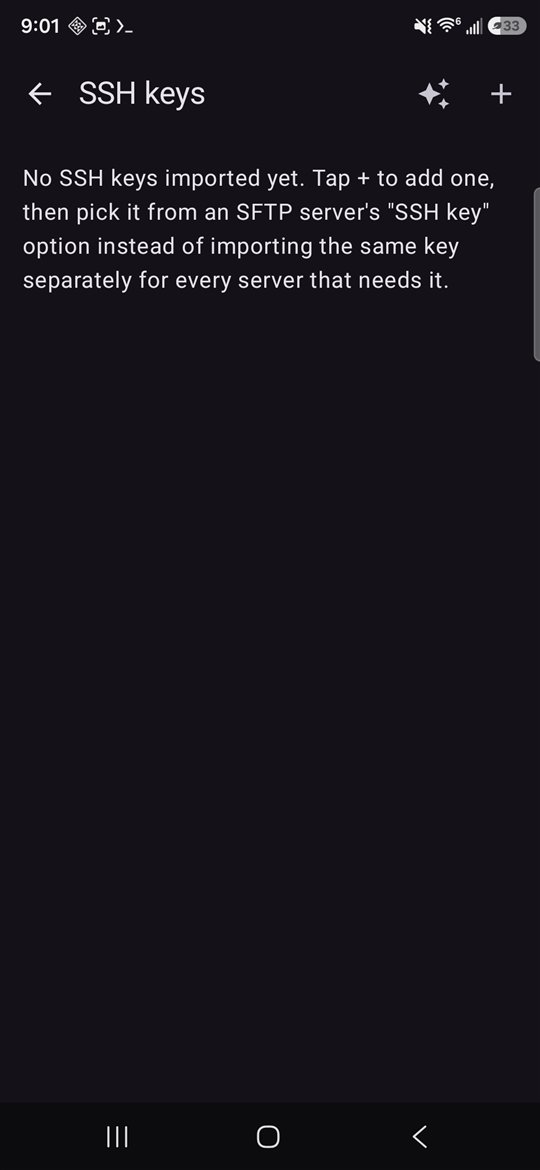
SFTP connects over SSH, port 22 by default, and authenticates with a password or a key. The app opens up to eight SSH connections in parallel while syncing, so a server with a low MaxSessions or MaxStartups may want those raised.
Using a key
- Open Manage SSH keys from the server editor or the Servers screen.
- Import or generate. Import an OpenSSH private key file (byte-order marks and Windows line endings are tolerated), or tap Generate to create an ECDSA P-256 pair on the device. The private key never leaves the phone's encrypted storage.
- Copy the public key and append it to
~/.ssh/authorized_keysfor the account on the server. - Select the key in the server editor instead of entering a password.
Key exchange uses the full Bouncy Castle provider bundled with the app, so modern servers that only offer curve25519 or ECDSA host keys work on every Android version the app supports.
NFS
NFSv3 over TCP, implemented inside the app. Enter the server and the exported path, for example /volume1/books. The app asks the portmapper for the MOUNT and NFS ports, so non-standard ports need no configuration, but the portmapper on port 111 must be reachable.
The client authenticates as AUTH_SYS with uid 0 and gid 0. Exports that squash root to an anonymous user, the default on many NAS devices, must allow that anonymous user to read the files, or be configured with no_root_squash. There is no UI yet to use a different uid.
SMB
SMB 2 and 3 shares on Windows, Samba, TrueNAS, Synology, QNAP and similar. Enter the host, share name and an optional path within the share, plus username, password and domain if the server needs one. SMB 1 is not negotiated.
Local folders
Any folder reachable through Android's document picker can be a source: internal storage, an SD card or a USB drive. Books copied in by other apps or over USB appear on the next scan. If the folder is a Calibre library, its metadata is read just like a server's.
Managing servers
- Edit any field later; a path change triggers a rescan.
- Disable a server to hide its books temporarily, for example a server that is only reachable at home.
- Delete removes the server and its books from the shelf. Synced files stay in the folder you chose; delete them from a file manager if you no longer want them.
- Scan errors show on the shelf and clear themselves on the next successful scan.