Getting started
From a fresh install to reading a book from your own server in about five minutes.
1. Install the app
Download the latest APK from the Download page on your phone and open it. Android will ask once to allow installs from the browser or file manager you used. PandaReader needs Android 10 or newer.
No account is created and nothing is sent anywhere. The app opens on an empty shelf with a button to add a server.
2. Add your first server
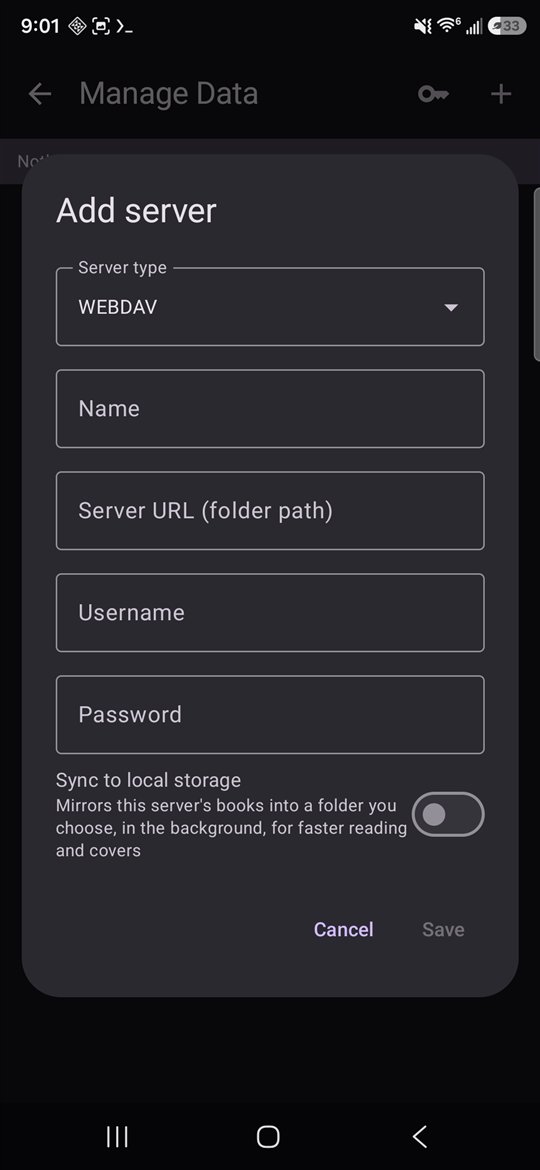
- Open Servers from the shelf menu and tap Add.
- Pick the type: WebDAV, FTP, SFTP, NFS or SMB. A local folder on the phone is added from the same screen through Android's folder picker.
- Enter the address and credentials. For SFTP you can choose a key instead of a password; see SSH keys.
- Set the starting folder. Point it at the folder that holds your books or your Calibre library. Case does not matter; the app resolves the path against the server's real directory tree.
- Save. The app scans the server immediately. If the folder is a Calibre library, titles, authors, series and tags come from Calibre's database instead of filenames.
Add as many servers as you like. The same book found on two servers appears once on the shelf, with both copies listed on its detail page. The server guide covers each protocol's fields and quirks.
3. Around the shelf
- Tabs. The home shelf shows every book, with in-progress books pinned first. The Series tab groups by Calibre series; the Collections tab holds folders you curate or the app detects.
- A–Z rail. Tap a letter on the right edge to jump; the arrows at the ends go to the top and bottom.
- Search and filter. Search by title, author, format or source name. The filter dialog narrows by collection, series, tag or status.
- Long-press a book or folder to multi-select, then mark read, add to a collection, tag, hide or delete.
- Swipe left from the shelf to see hidden books and bring them back.
- Book detail. Tap a cover for the description, every format and source, per-format progress, author links, and Hardcover and Open Library links when available.
4. Open a book
Tap a book, then tap the format you want. The file is fetched to a local cache and opened in the engine for its format. The first open of a large book from a remote server takes as long as the download; synced books open immediately.
Inside the reader, tap the middle of the page for the controls and the chapters drawer. Reading theme, font, size and scroll-versus-paged mode are set once in Reader settings and apply to every book, with a live preview while you adjust them. The reading guide has the gestures, highlights and notes.
Next steps
Sync for offline reading
Mirror a server to the phone and hide what is unavailable when you lose the network.
Connect Calibre over Wi-Fi
Push books straight from Calibre's desktop app with no server at all.
Fill in missing series
Add a Hardcover API key and choose the lookup order.
FAQ
Signatures, DRM, logs and other common questions.