
Reading
One set of controls across three engines. Reflowable books use the text engine, PDFs the native viewer, and comics and scans the bitmap pager. Settings are global and apply to every book.
Scroll and paged
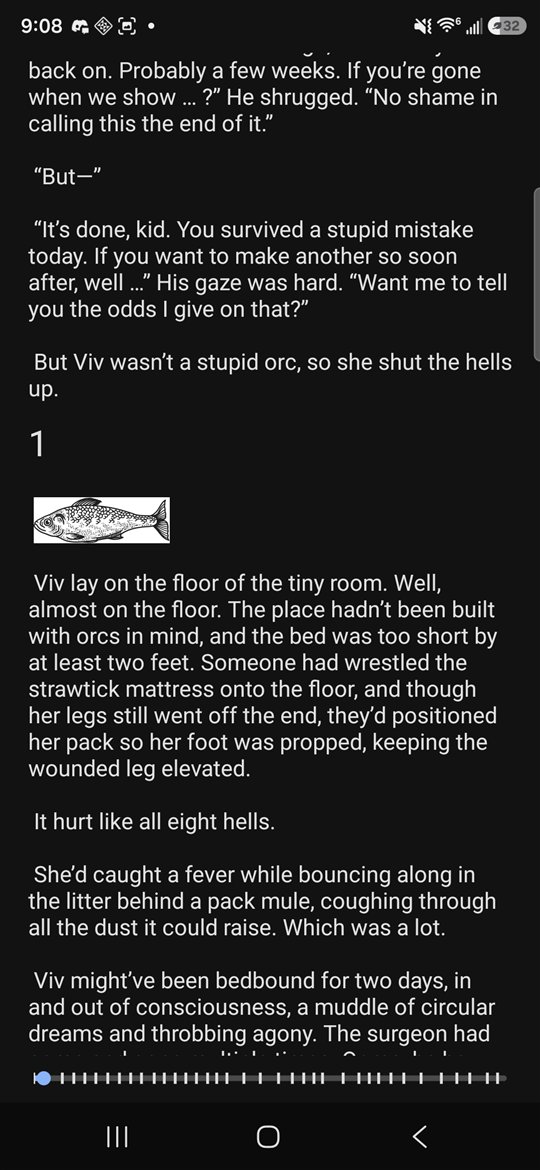
Infinite scroll stacks the whole book into one continuous column. Page turning slices it into screen-sized pages you swipe or tap through. Switch between them in Reader settings; the choice applies to text books and comics alike. In either mode the bottom status bar shows a progress bar, the page counter and the percentage, each of which can be turned off. Tap the counter to switch it between "page of total" and percent.
Page totals are exact. When a text book opens, only the chapter you are resuming is laid out before the page appears; the rest is measured in the background and the total settles within a couple of seconds.
Navigating
- Chapters drawer. Open from the reader controls. Built from the book's table of contents, or from a PDF's bookmarks. Hidden for comics and DjVu, which have no structure to show.
- Highlights & Notes drawer. Every highlight and note in the book, tap to jump. Multi-select to delete several at once.
- Back. After jumping to a chapter, highlight or note, a Back button in the status bar returns you to where you were.
- Links. Internal links in EPUBs and PDFs jump within the book; external ones open in the browser.
Highlights and notes
- Long-press a word to start a selection, then drag the handles. While a handle is held, a magnifier floats above your finger showing the exact spot, down to the gap between two letters.
- Choose Highlight from the selection toolbar. Highlights are a translucent yellow that reads on all three themes.
- Tap a highlight later for Note, Edit and Remove. Edit lets you drag its boundaries; Note attaches text you can read back in the drawer.
Two highlights that meet across a page break with nothing but whitespace between them merge into one automatically. Highlights are stored per book on the device and survive font and mode changes, since they are anchored to the text rather than to a page.
PDFs open in a native viewer with real text: select and highlight, attach notes, tap links, and jump through the document's bookmarks in the chapters drawer. Pinch to zoom and pan freely. In the dark reading theme, Invert PDF colours in Reader settings renders white pages dark.
Comics and DjVu
CBZ, CBR, CB7 and CBT archives and DjVu files open in a page viewer that honours your scroll-or-paged preference. Pinch to zoom in, drag to move around the page, and the view stays exactly where you put it. Pages are decoded at screen size, so even very large scans page quickly. Image-per-page EPUBs and AZW3 comics are detected and open here too.
Reader settings
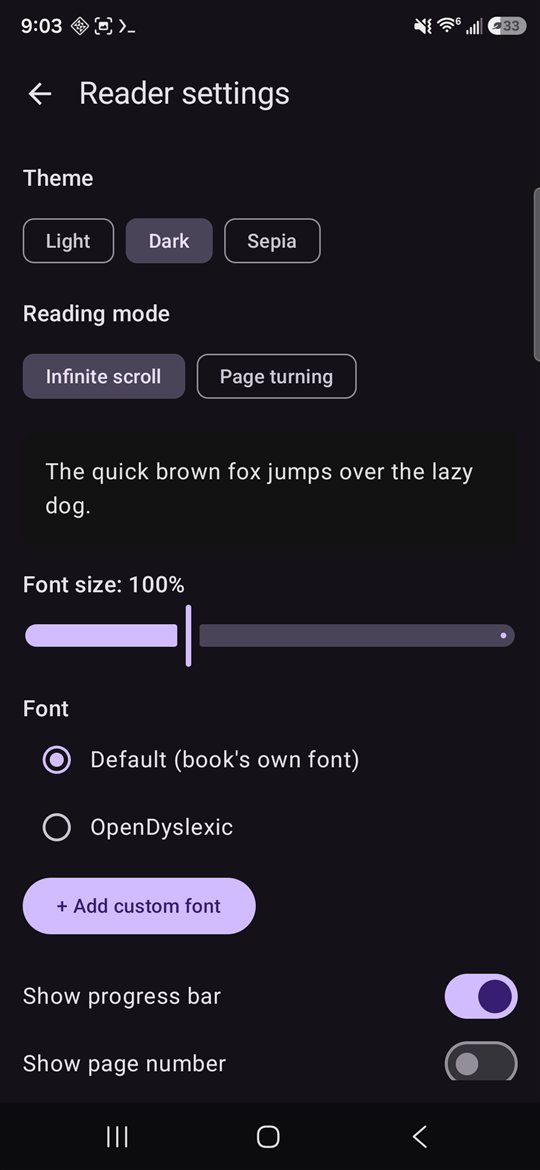
Open Reader settings from the shelf menu. Every control updates the preview at the bottom immediately, so you see the result before leaving the screen.
- Theme: Light, Dark or Sepia for the reading surface. The app's own menus follow the separate App settings theme.
- Font: the built-in faces, OpenDyslexic, or Add custom font to import a TTF or OTF from the phone. Imported fonts can also be used for the app's menus from App settings.
- Font size as a percentage.
- Reading mode: infinite scroll or page turning.
- Show progress bar, page number, percentage read.
- Invert PDF colours in dark theme.
Progress and resume
Your position is saved continuously as an exact chapter and character offset plus a percentage, so changing the font size still resumes on the same words. Progress is per format: a book you started in EPUB and reopen in MOBI has two positions, both shown on the detail page with a reset button. The shelf pins in-progress books to the top and offers a one-tap resume last book button.